How DNS Works: What Happens When You Type a URL into Your Browser
Feb 16, 2026What happens after you type a website into the address bar? How does your computer know the website to pull up? It feels instant. You type a name, hit Enter, and a website appears. However, computers don’t communicate using human-readable names. They speak in the language of IP addresses.
When you enter a domain like example.com, your computer can’t send a request to “example.com.” It needs the IP address of the domain’s web server first. Only after it has this information can it make a connection with the web server and display the webpage. The system responsible for translating domain names to IP addresses is called the Domain Name System (DNS). But how does it work?
So, the question becomes: How does your computer find the correct IP address for a domain?
When you type a website into your browser, your computer must first find the website’s IP address. It does this by sending a DNS query to a recursive resolver. If the answer is not cached locally, the resolver contacts root servers, then top-level domain (TLD) servers, and finally the domain’s authoritative nameserver. Once the IP address is returned, your browser can connect to the web server and load the page.
Parts of a Domain Name
Before we explore the process of how your browser converts domain names into IP addresses, it’s helpful to understand the different parts of a domain name. Let’s use an example domain of docs.google.com. We’ll start at the end of this name and work toward the beginning. Notice the last word of the name: com. This specifies something called the top-level domain (TLD).
There are two types of top-level domains. The first of these are generic domains (gTLDs), which typically identify the purpose of the domain. This is the most common domain type, including .com for commercial domains, .org for organizations, and .edu for educational institutions.
The second type of top-level domain is the country code TLD (ccTLDs). These domains are reserved for international use, typically used to represent a country or territory. For example, the United States has a TLD of .us, .cn belongs to China, and .uk is used for the United Kingdom.
Moving to the left, we come to the second-level domain. In our example, that’s “google.com.” This is the portion of the name registered under the top-level domain. The organization that owns this domain controls its DNS records through its authoritative nameservers.
Moving left again, there is sometimes a part of the domain name to the left of the second-level domain, called a subdomain. For example, docs.google.com is a subdomain of google.com. Not every authoritative domain has a subdomain, but every subdomain has an authoritative domain that encapsulates it. Subdomains can be delegated to their own nameservers, which allows responsibility for that portion of the namespace to be managed separately from the parent domain. So, docs.google.com wouldn’t have to be managed by the google.com domain.
Note how each separation between child and parent domain is separated by a . in the domain name. docs and google and com are all separated by a period, marking the change in domain level. It’s important to add that there is also a . at the end of every domain name. This dot is assumed and hidden in most cases, but it’s important to recognize in understanding the resolution of a domain name, representing the highest hierarchical level of the Internet. When this root domain is shown at the end of a name, the domain name is referred to as the fully qualified domain name (FQDN).
The Journey of a DNS Request
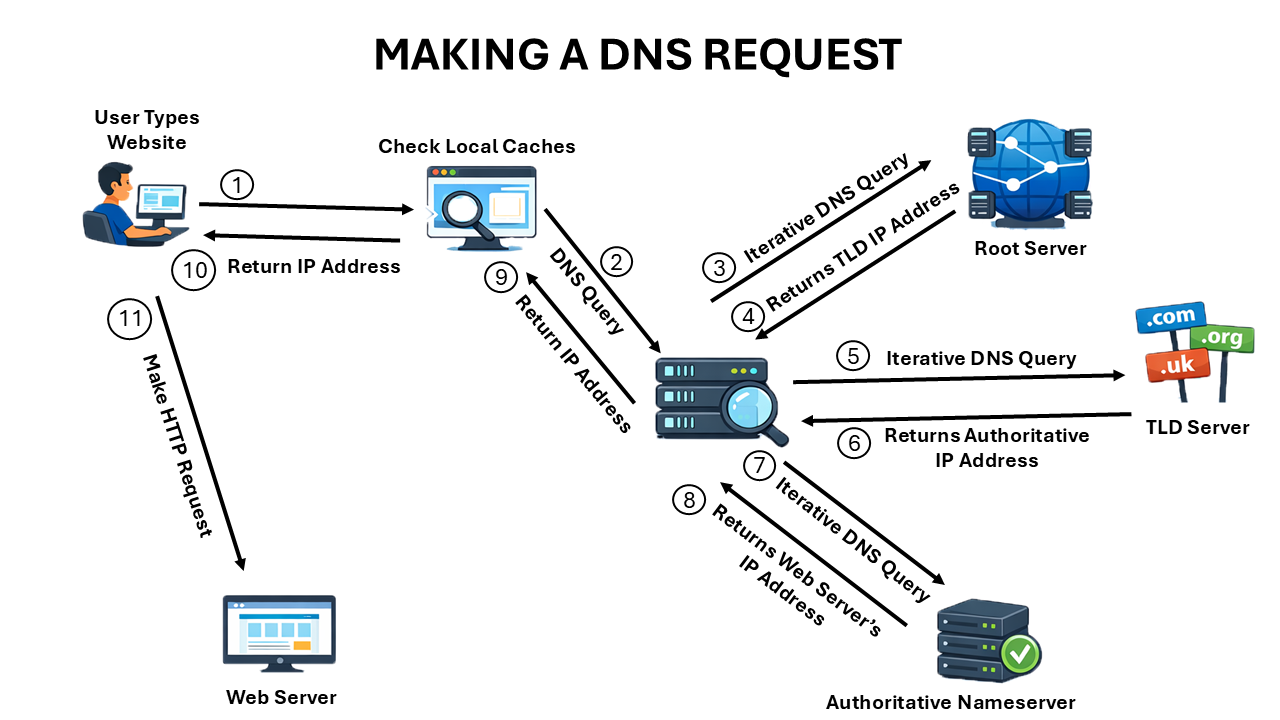
Now that we understand the components of a domain name, let’s explore what happens after you hit Enter in your web browser. For simplicity’s sake, we’re going to assume that we’re working with a new computer that has nothing cached (we’ll get to caching later). When you type a URL into your browser, your computer sends a recursive DNS query to its configured DNS server, often called a recursive resolver. By default, this is typically your ISP’s DNS server, but it can be changed to any DNS server that you specify, such as a local DNS server or Google’s DNS server.
Since this DNS server doesn’t have any records cached, it knows only one thing: the IP addresses of the root domain servers. The IP addresses of these root servers are unchanging and hardcoded into all DNS servers. So, it sends the DNS request on to one of the root server clusters responsible for the DNS root zone. Not knowing the IP address of the FQDN in the request, the root nameserver responds with the IP address of the correct top-level domain server. The recursive DNS server then sends a request to the provided top-level nameserver, which responds with the IP address of the correct authoritative nameserver.
The recursive DNS server then sends a request to the authoritative nameserver. Remember that the authoritative nameserver contains the DNS records for that domain’s zone. Thus, the authoritative nameserver is able to respond to the request with the IP address for the specified FQDN.
Note that if a subdomain is present in the FQDN and if the subdomain has been delegated to its own nameservers, the resolver will ultimately get the answer to its request from those nameservers instead, which then responds with the needed IP address.
The recursive DNS server sends the IP address back to the client computer, which then sends an HTTP GET request to the provided IP address for the desired content’s web server.
The Effects of Caching
Now, if this full process happened for every lookup, the web would feel significantly slower. The difference is caching. Every time that a DNS request is made, the answer is cached for future reference, making the next DNS lookup quicker. There are various levels of caching, and each record has a TTL (time to live) that it is kept for before the request has to be made again.
The first location an IP address might be resolved is the web browser. Every modern web browser keeps a small cache with recently requested domain names and their resolved IP addresses. A client computer’s operating system also keeps a cache. Similarly, every DNS server keeps a cache of all the records that it has recently processed.
However, IP addresses change over time. If a cache was never updated, its records would grow increasingly wrong over time, defeating the entire purpose of caching and leading to increased resolution times.
For this reason, every DNS record has a Time To Live value (TTL) that determines how long it can be cached for before expiring and the computer has to make the DNS request again. Although default TTL values differ depending on how the record is configured, a common default value is 3600 seconds (1 hour).
Revisiting the Journey of a DNS Request
Let’s now revisit the path a DNS request takes that is closer to reality, now taking caching into account. Before the client ever sends out a DNS request, it first checks the local computer for the cached record. It first checks the browser cache. If not found, it moves on to the OS cache. If not found there, it checks the local hosts file. This is a file stored on the local computer (on Windows, typically found at C:\Windows\System32\drivers\etc) detailing manual DNS resolutions.
If the domain name can’t be resolved at the local level, a DNS request is then sent to the default DNS server. If the record is cached on this server, it’s immediately sent back to the client. Otherwise, the request is sent on the root nameserver, TLD nameserver, etc. until the name is resolved. Since caching exists at multiple levels, many queries are answered long before reaching the authoritative nameserver.
Why this Matters on the Help Desk
When someone types a website into a browser, it doesn’t “just load.” A chain of requests and records work together to translate a name into something the computer understands. That chain has multiple failure points.
A record might be cached in one place but not another. A TTL might have expired on one system but not its neighbor. A local hosts file might override everything without anyone realizing it. From the user’s perspective, the problem looks random.
This is why DNS issues so often feel confusing on the help desk. The symptom shows up in one place, but the cause might live several layers upstream.
Understanding the path of a DNS request changes how you troubleshoot. Instead of guessing, you start asking better questions:
- Where could this be cached?
- Has something changed recently?
- Is this machine receiving a different answer from others?
That shift in thinking is what separates reactive troubleshooting from confident troubleshooting. Most help desk technicians never make that shift - which is why the same problems keep feeling unpredictable. If you want a simple framework for handling help desk calls like these - especially when the symptoms don’t immediately make sense - download my free guide. It gives you a repeatable way to take control of the conversation, narrow the scope, and avoid chasing the wrong problem.
Get the free guide: 5 Steps to Handling Help Desk Calls with Confidence
FAQ
What is DNS in simple terms?
DNS (Domain Name System) is the system that translates human-readable domain names into IP addresses that computers use to communicate.
What is a recursive DNS resolver?
A recursive resolver is a DNS server that performs the full lookup process on behalf of a client and returns the final answer (an IP address).
What does TTL mean in DNS?
TTL (Time To Live) is the amount of time a DNS record can be cached before it must be refreshed.